
About Azimuth Claims Cal ID
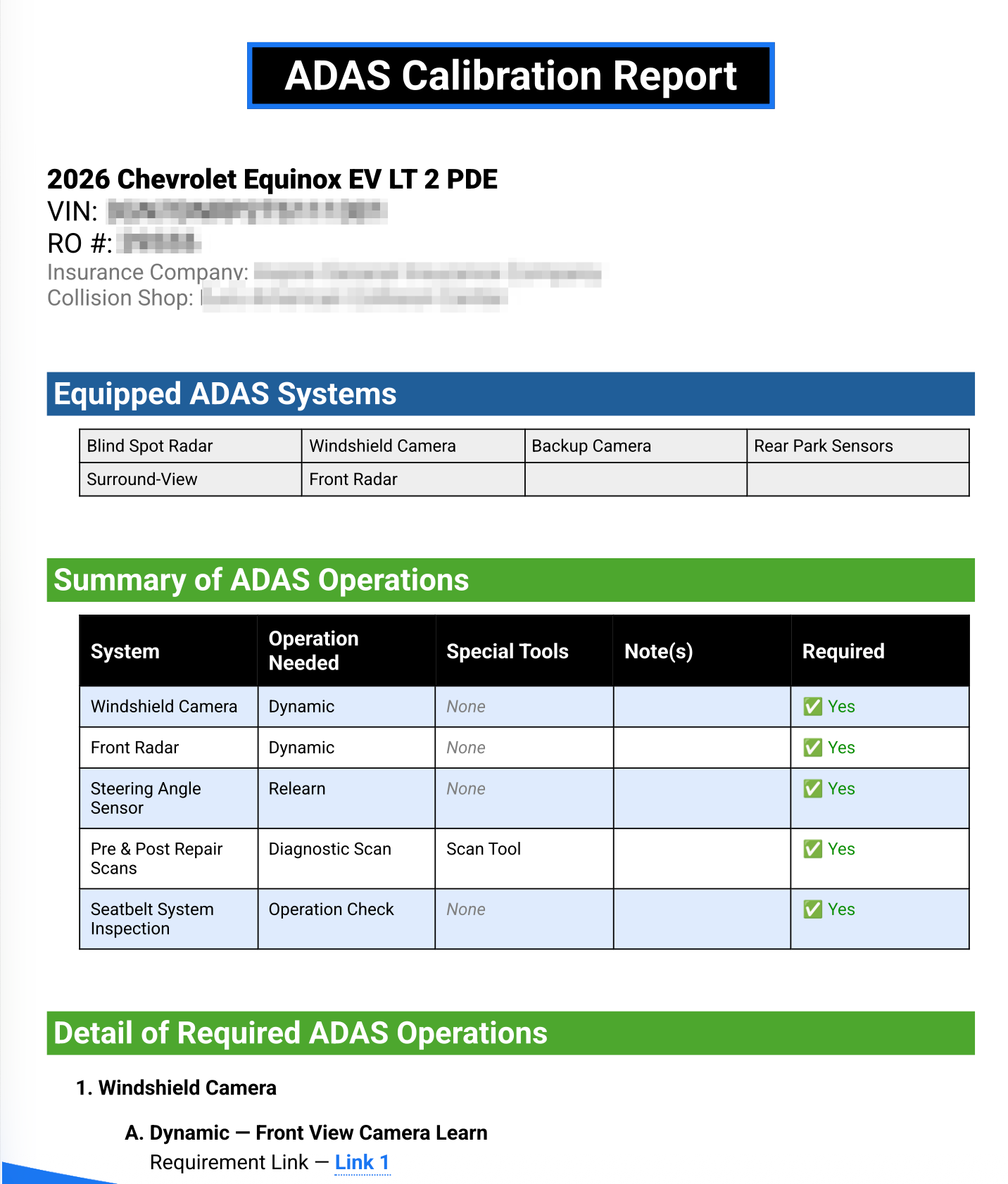
Azimuth Claims Solutions provides innovative, data‑driven tools designed to address the growing challenges of handling claims and performing repairs on vehicles equipped with ADAS technologies.
Our ADAS Calibration ID Tool identifies required calibrations by analyzing:
- Vehicle repair plan
- Model‑specific OEM procedures
- Vehicle build data
The tool organizes this information into a concise, easy‑to‑read report with direct links to the relevant OEM service information.
Azimuth is focused on bringing clarity, accuracy, and transparency to ADAS calibration decisions. As advanced safety systems become more complex, the industry needs a consistent and defensible way to determine which manufacturer‑required calibrations are necessary based on vehicle repairs performed.
Our mission is to streamline the claims process, ensure all required calibrations are completed, help insurers and repairers work together more efficiently, and—most importantly—help keep customers and communities safe.
Pricing and Billing
Pricing Options
Billing
Please fill out the sign-up form to begin the sign-up process:
Connecting in CCC
Connecting your CCC ONE account to Azimuth Claims takes two quick setups: the Secure Share connection (which shares your estimate data with us) and the Diagnostics Workflow connection (which delivers Cal ID reports back into CCC ONE). Expand each part below for step-by-step instructions.
-
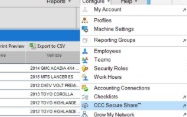
Open CCC ONE
Log in to CCC ONE and navigate to the Secure Share section.
-
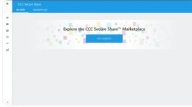
Access App Connections
Navigate to the App Connections area to view available integrations. From the list,
locate and select the Azimuth Claims Cal ID app.
- Review Shared Data On the info page, review the information that is shared with Azimuth Claims, then click Next.
-
Configure Event Types
On the Settings page, click the pencil icon next to Event Type. Check Workfile Save,
Estimate Locked, and Manual Export, then click Next.
We recommend keeping all items checked for best results. - Enable Connection On the confirm page, swipe to enable to complete the connection.
This connection configures CCC ONE® to display diagnostic calibration recommendations directly on your workfiles, delivered automatically by Azimuth Claims.
- Log in to cccone.com Sign in to CCC ONE on the web in your browser.
-
Open Diagnostic Connections
Select the Menu icon, then Settings, then the Diagnostic Connections tile.
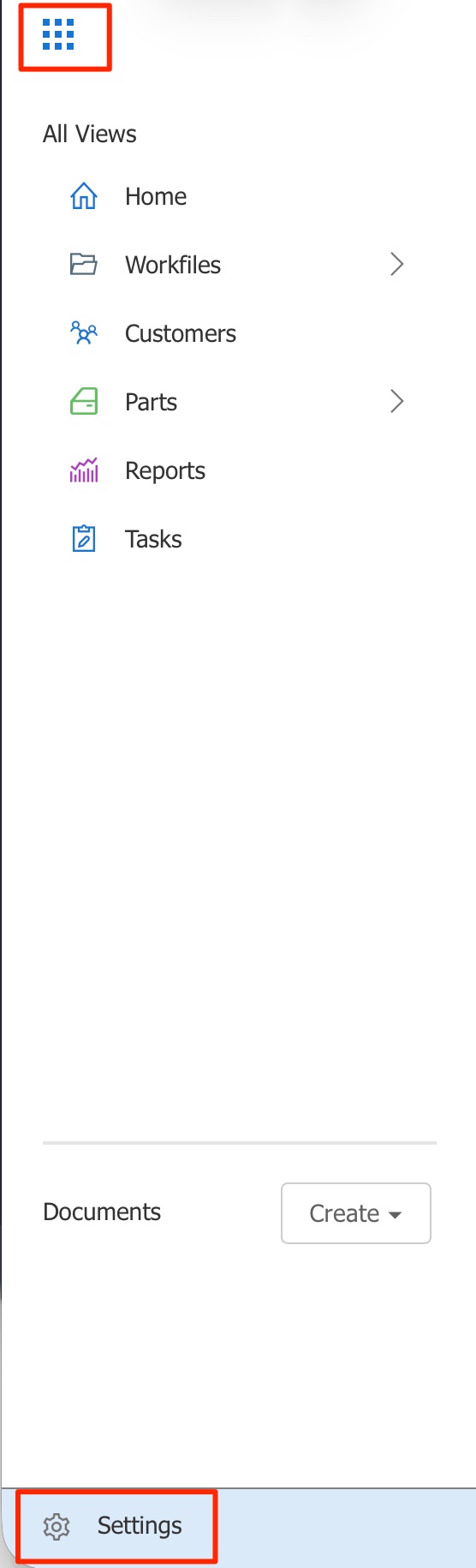
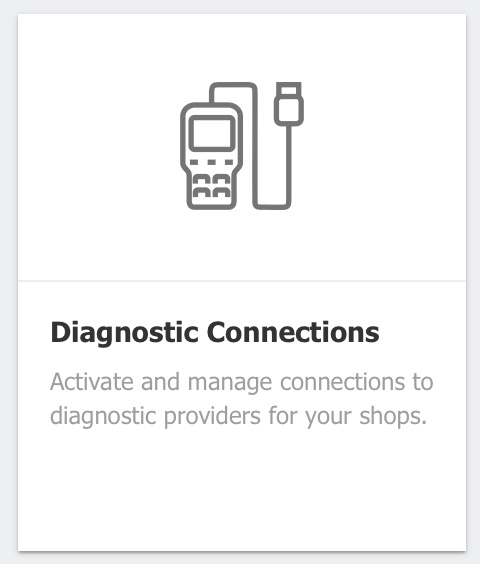
You can also get here from the Action Center: select Diagnostic reports at the bottom of the left-hand menu, then click Register. -
Add a Connection
On the Diagnostic Scan Connections page, select +Add.
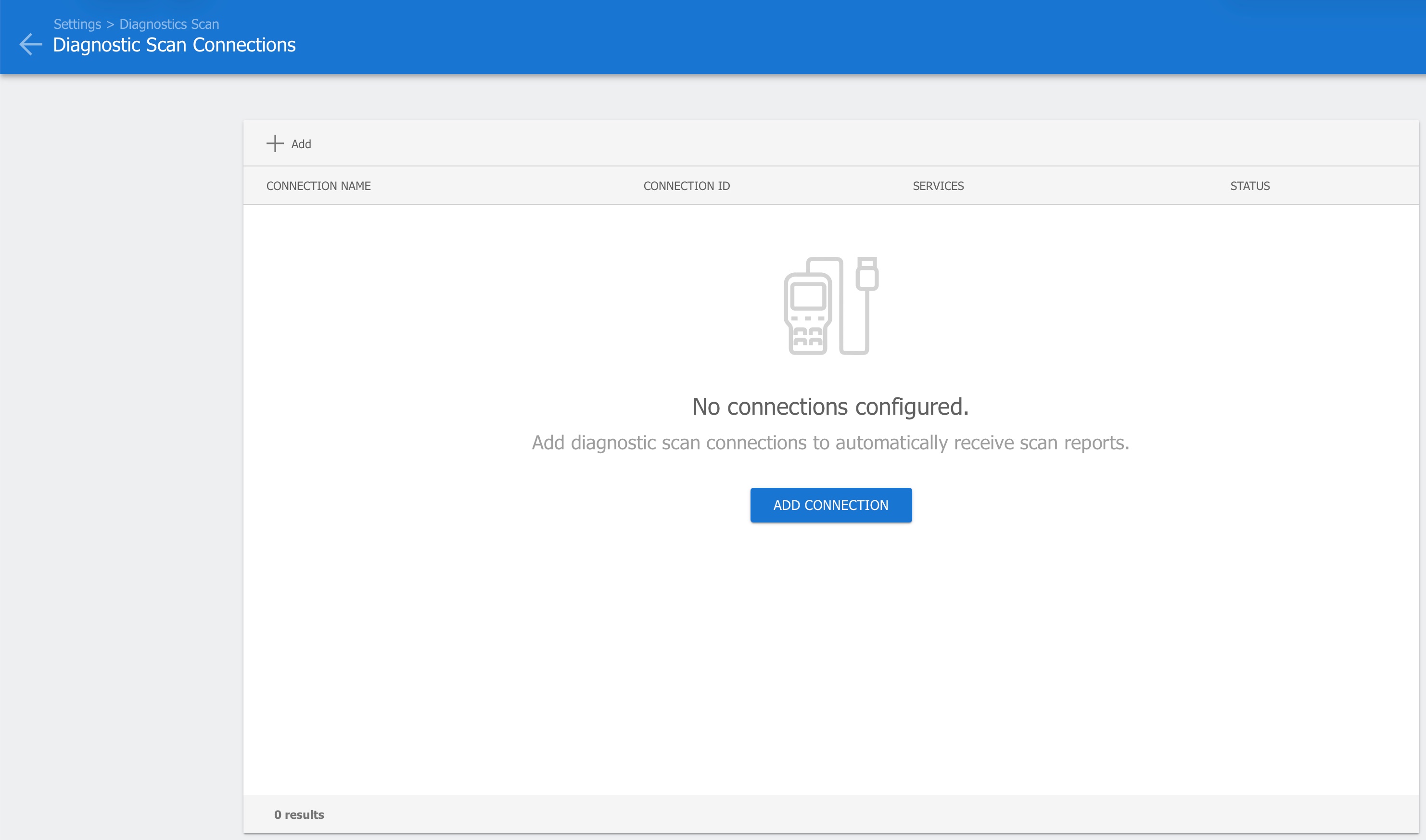
-
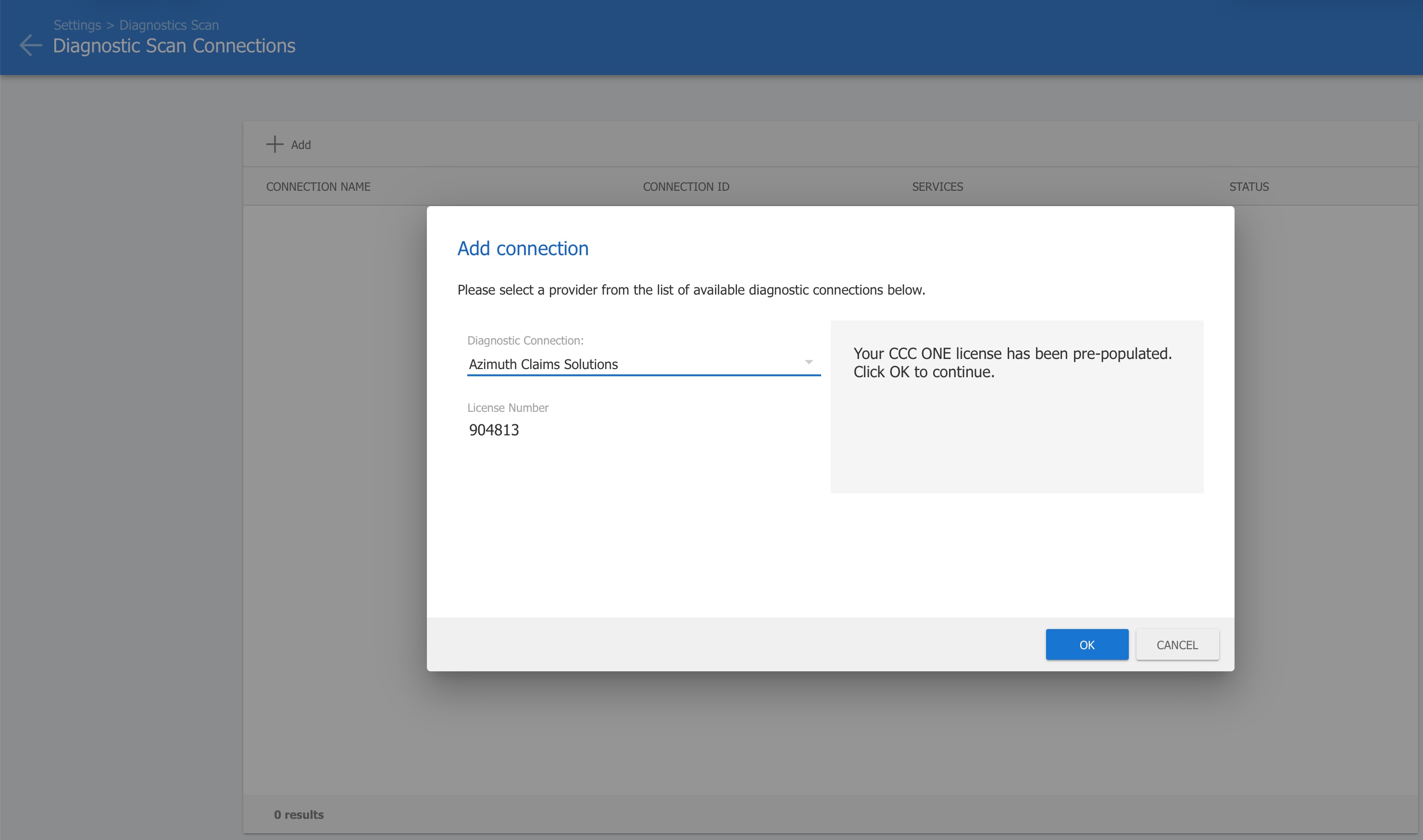
Select Azimuth Claims Solutions
In the Add Connection dialog, choose Azimuth Claims Solutions from the Diagnostic
Connection list. Your CCC ONE License Number is pre-populated automatically — just
click OK to continue.
-
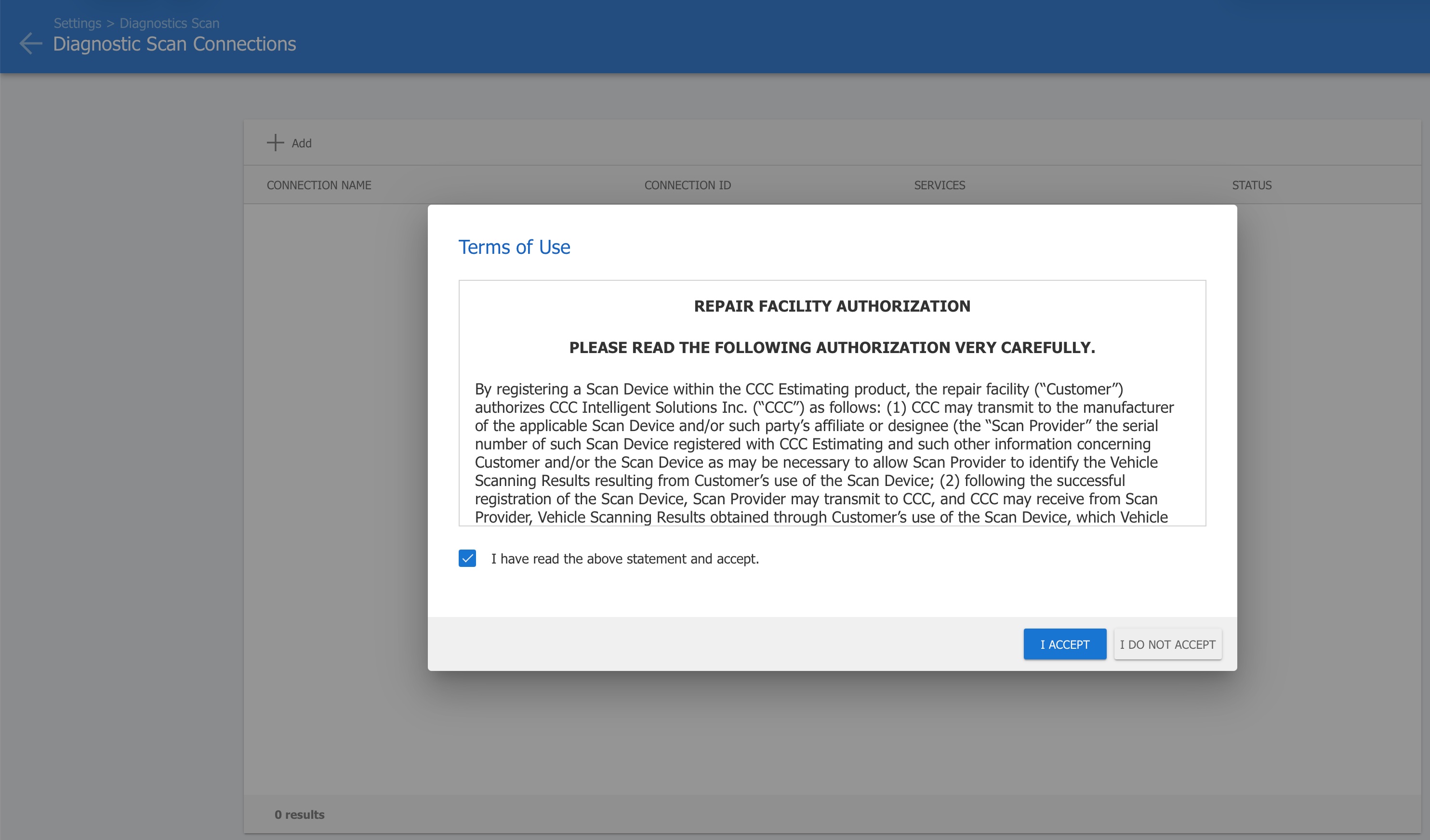
Accept the Terms of Use
Review CCC's Repair Facility Authorization, check the box to confirm you've read it,
and click I Accept.
-
Confirm the Connection
Azimuth Claims Solutions now appears in your Diagnostic Scan Connections list with a
status of Enabled. That's it — your CCC ONE account is fully connected and Cal ID
reports will be delivered automatically.
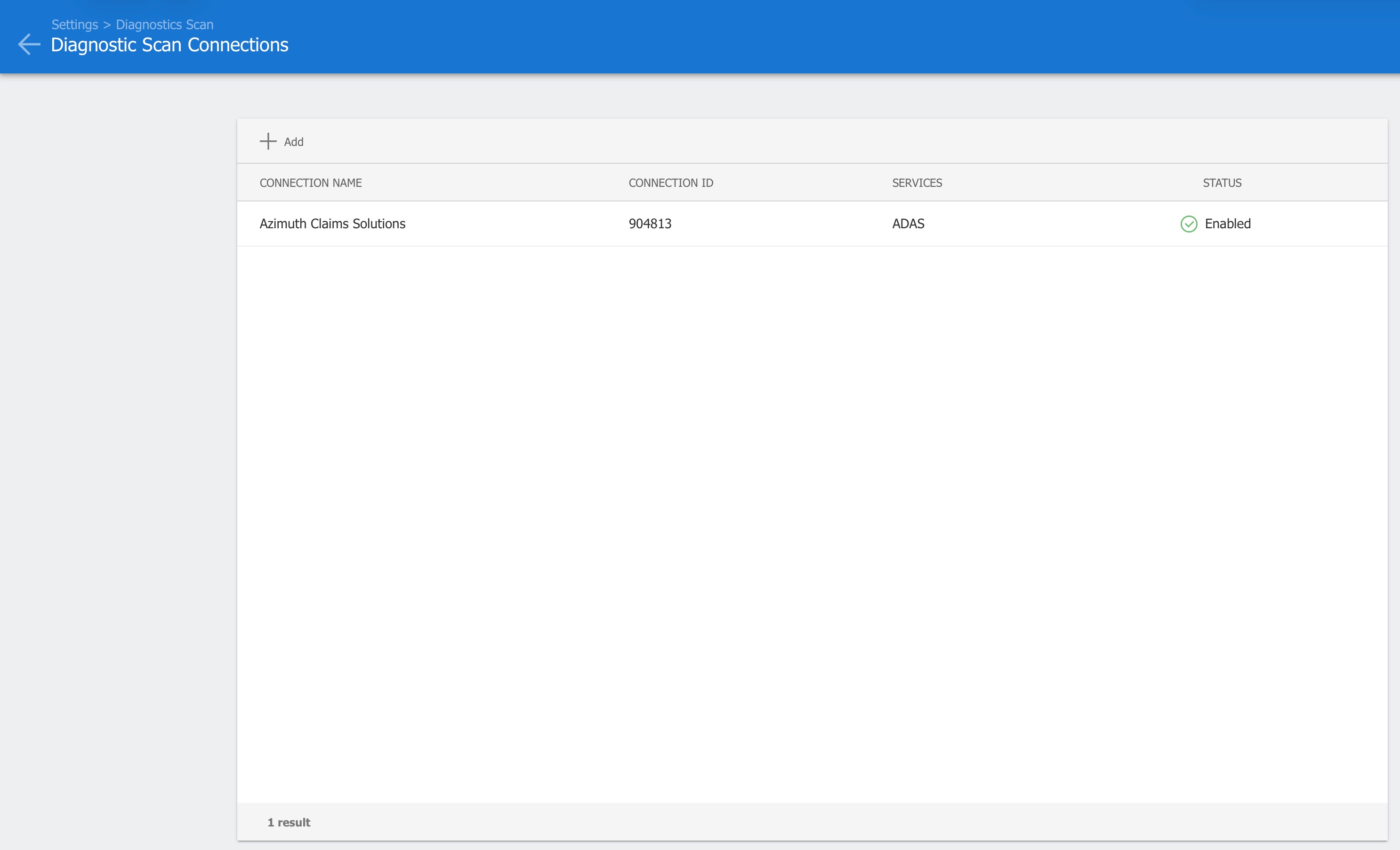
For CCC's own documentation of this process, see their Configure Calibration Guidelines job aid.
Accessing the Azimuth Claims Portal
-
Open Email
Our team will create a user for you in the Azimuth Claims Portal, which will
automatically send you an email that includes the link to the portal.
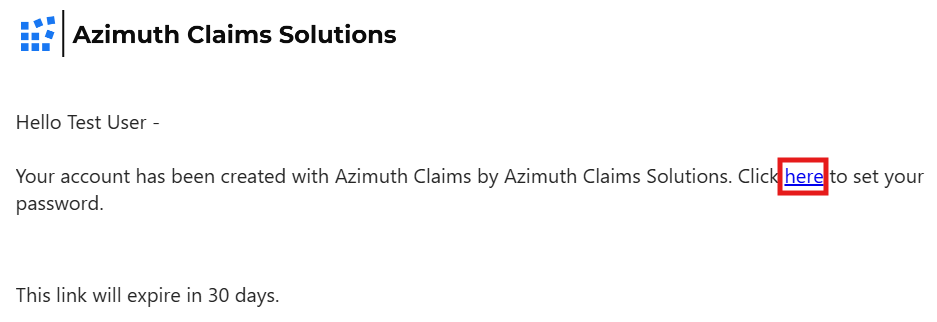
- Click the Link Clicking the link will take you to the Azimuth Claims Portal.
- Create Your Password Create a password that satisfies the security requirements.
- All Set You can now view Cal ID reports created automatically from saved estimates in CCC. Our support team or an Admin user in your company can turn on a setting that allows you to be notified when a report is run.